
How to import .CSV as external contacts in Exchange?

Heads up (as of November 2026): This post is from 2015. Exchange 2010 and 2013 have both reached end of support, so if you’re still running one of them, upgrading should be at the top of your list. The good news? The New-MailContact cmdlet used below still works the same way in newer versions of Exchange and in Exchange Online PowerShell.
What you need:
- Microsoft Exchange Server
- In this guide, we are using Microsoft Exchange 2010.
- A specially formatted .CSV file.
- This is illustrated below.
Step 1:
Create a .CSV file with this format:
Save it as contacts.csv. For the purpose of this guide, I have saved it to D:\contacts.csv
Also, make sure you have the Organizational Units (OUs) created in your Active Directory before proceeding. If not, you will get an error in Step 3.
Step 2:
Launch Exchange Management Shell.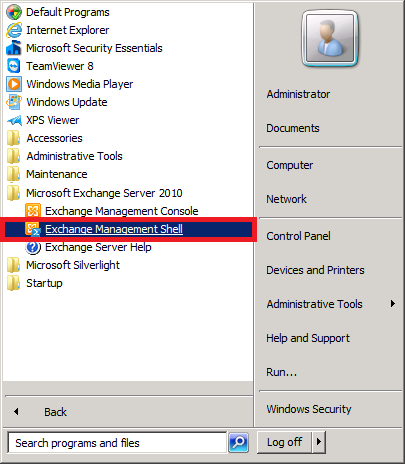
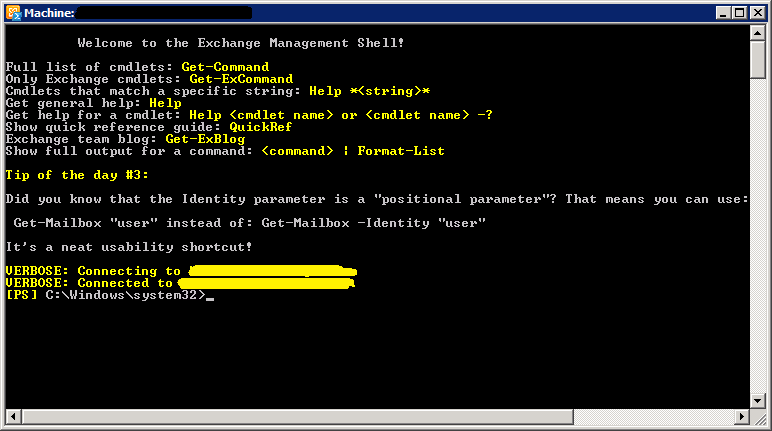
Step 3:
Once it launches, type the following code:Import-Csv D:\contacts.csv | ForEach-Object { New-MailContact -Name $_."Name" -ExternalEmailAddress $_."Email" -FirstNa
me $_."FirstName" -OrganizationalUnit $_."Oupath" -Alias $_."Alias" }
Hit Enter and you are done!
Header photo by FINTOC (public domain, via Flickr)